 Products
 Manufacturing
 Network
 Promotions
 BlogSpot / News
 Bestsellers
USER ACCOUNTS · PROFILE DATA
Current information.
An account ready for everyday work.
Your user account stores the information that identifies you in the system. Before making a change, check that you are editing your own profile and consider the purpose of the selected field.
Personal information, public seller information, and notification recipients are not necessarily the same setting. Changing the email address in your personal profile does not confirm that all store contacts have also been changed.
Go through the guide
VISUAL GUIDE · FIVE STEPS
Edit your profile, step by step
The numbers in the overview correspond to the labels in the images. The interface in the images is in English so that the same views can be used with all language versions of the instructions.
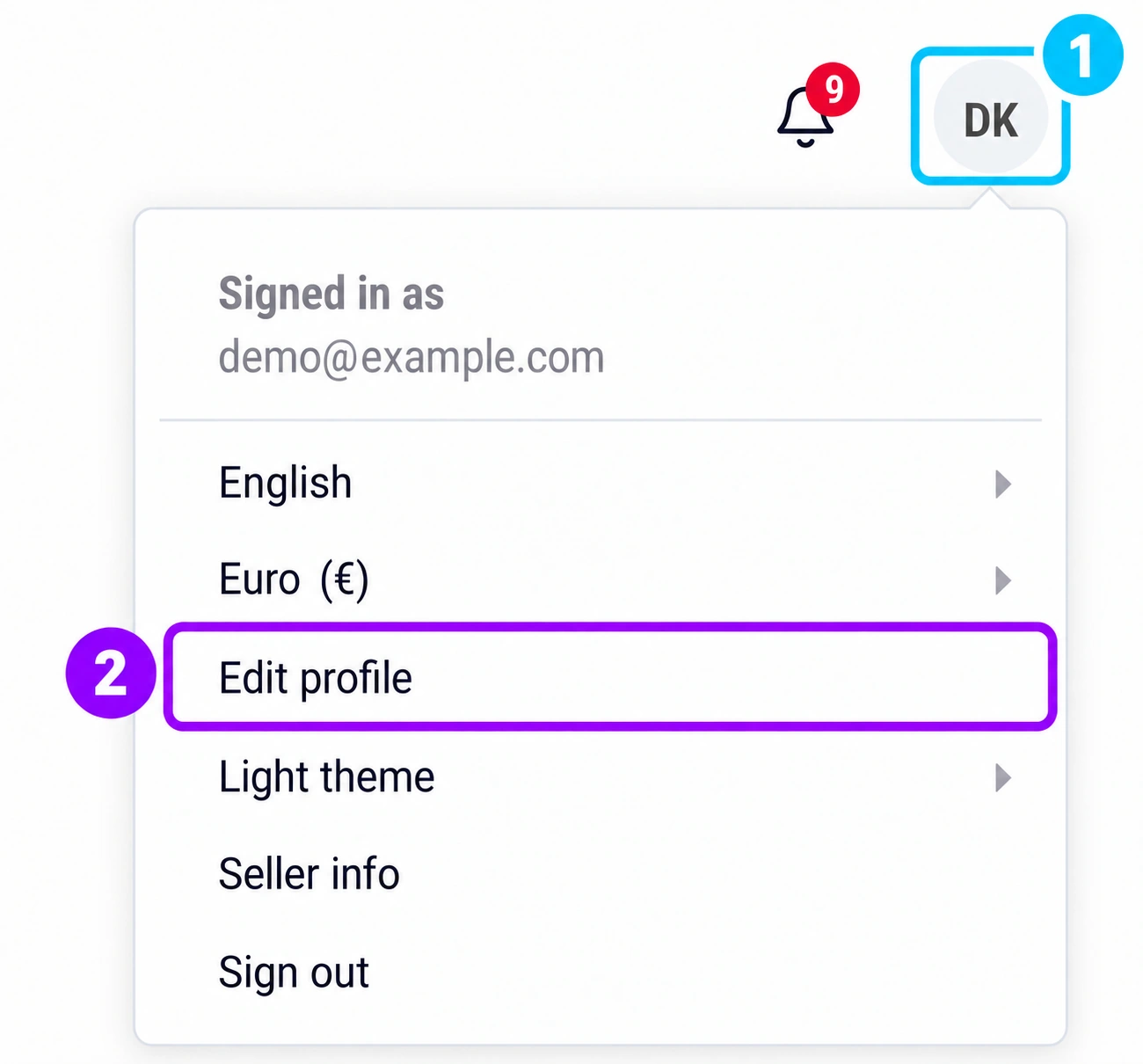
- 1Open the account menu in the upper-right corner.
- 2Select Edit profile.
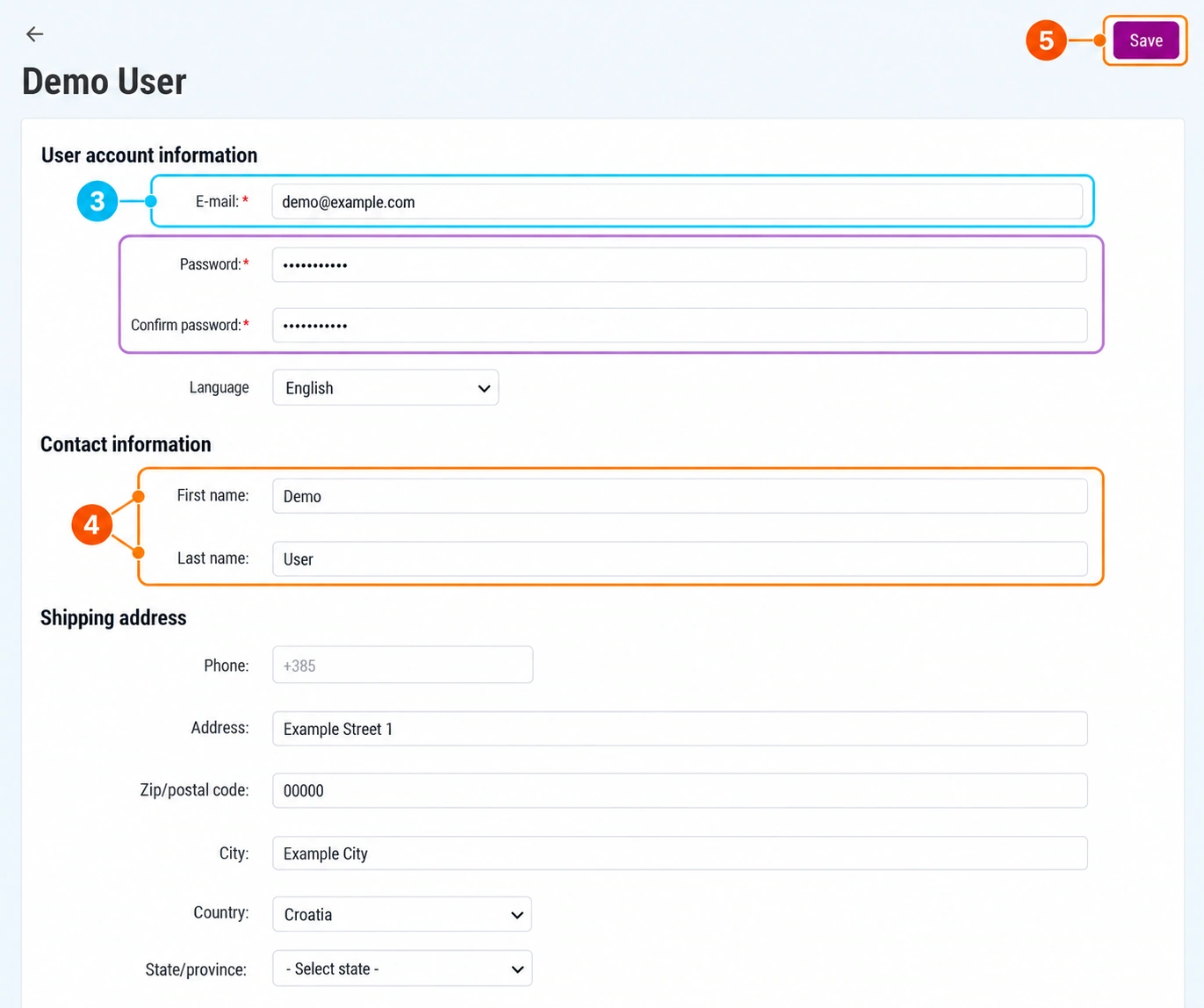
- 3Check the field E-mail.
- 4Edit First name and Last name.
- 5Review the changes and click Save.
The views are anonymized and additionally labeled. The names, email addresses, and address shown are examples.
1. Open your user profile
Sign in with your own account. In the upper-right corner, open the menu with the user's initials (label 1), then select Edit profile, or Edit profile (label 2). The name and location of the option may vary depending on the interface and your permissions.
Check the name and user address before making changes. If you have permission to view other users, do not confuse their profile with your own. If you cannot find the setting, request instructions for your account type.
2. Distinguish the information you are changing
Personal profile
The user's name, contact information, and sign-in information, according to the available fields.
Public store contact
Information that customers see with the store or on its pages. It is checked separately from your personal profile.
Business notifications
Recipients of messages about orders and other events. Their configuration may be in separate settings.
Before changing an email address, determine whether you want to change the person's sign-in, the customer contact, or the recipient of a specific notification. If you need all three changes, check each one separately.
3. Edit the information and save the change
Enter accurate information in the fields you are allowed to edit. When changing an email address, check access to the new inbox and coordinate the change if the address is part of the team's business process.
- Review the first and last name and the available contact information.
- Check the spelling of the email address and phone number before saving.
- Complete the required fields and follow the validation messages shown.
- Save the change, then reopen the profile and confirm the saved values.
If a field is unavailable or an error occurs, record the message. Do not create a replacement account to bypass restrictions; request a review of the existing profile.
Identify the fields on the form
3 · E-mail
Check the user address and access to the associated inbox.
4 · Contact information
The First name and Last name fields refer to the person using the account.
5 · Save
Save only after reviewing the information. Reopen the profile and check the values.
The Password and Confirm password fields are highlighted in purple. Do not change the password for a routine contact update; use these fields when intentionally changing the password, according to the form requirements. The user account language and shipping address are shown as separate fields.
Changing the password and sign-in information
To change the password, use the available fields or your account's procedure. Follow the requirements shown in the system, including verification of the current password if requested.
Use a unique password and save it in your password manager. If you can no longer sign in, use the access recovery process instead of editing information from someone else's account.
What to check after saving
- The profile shows the expected information after being reopened.
- You know which information is used for the next sign-in.
- If an additional change confirmation is shown, you have completed the corresponding instructions.
- The public contact and business message recipients have been checked separately when they also needed to be changed.
Do not conclude that notifications are routed correctly just because the profile was saved. To check recipients, arrange an appropriate test without unnecessarily creating real orders.
Frequently asked questions
Does the profile change the company name that customers see?
Not necessarily. The user profile and seller information serve different purposes. Check the setting that corresponds to the information you want to change.
Why can't I edit a specific field?
Editing may depend on the account type and permissions. Tell support which field you are trying to change and why.
Should I rename someone else's account to mine?
Arrange a separate account for the new person. Taking over someone else's profile can link different people and make access management more difficult.